Guide
How to run a successful hiring pipeline.
From the first applicant to your final hire, in one pipeline. Set your interview availability, keep Silent review on while you triage, review each applicant, move candidates through clear stages, let SLOS AI assist if you want, run interviews, send offers, and close the round cleanly. This guide walks through every step with screenshots, and it works the same for organizations, schools, and departments.
Before you start
- Have a live opportunity with an application form so applicants flow into your pipeline. See how to post one.
- Set your interview availability on the Calendar tab. How to set up your calendar.
- Be on a team role that can manage hiring. The controls are hidden, and refused on the server, otherwise.
Looking for what a specific button does?
Read the hiring guide: the full reference to every view, every filter, the AI ranking, review mode, interviews, offers, and exactly who gets emailed when.
Set your interview availability first
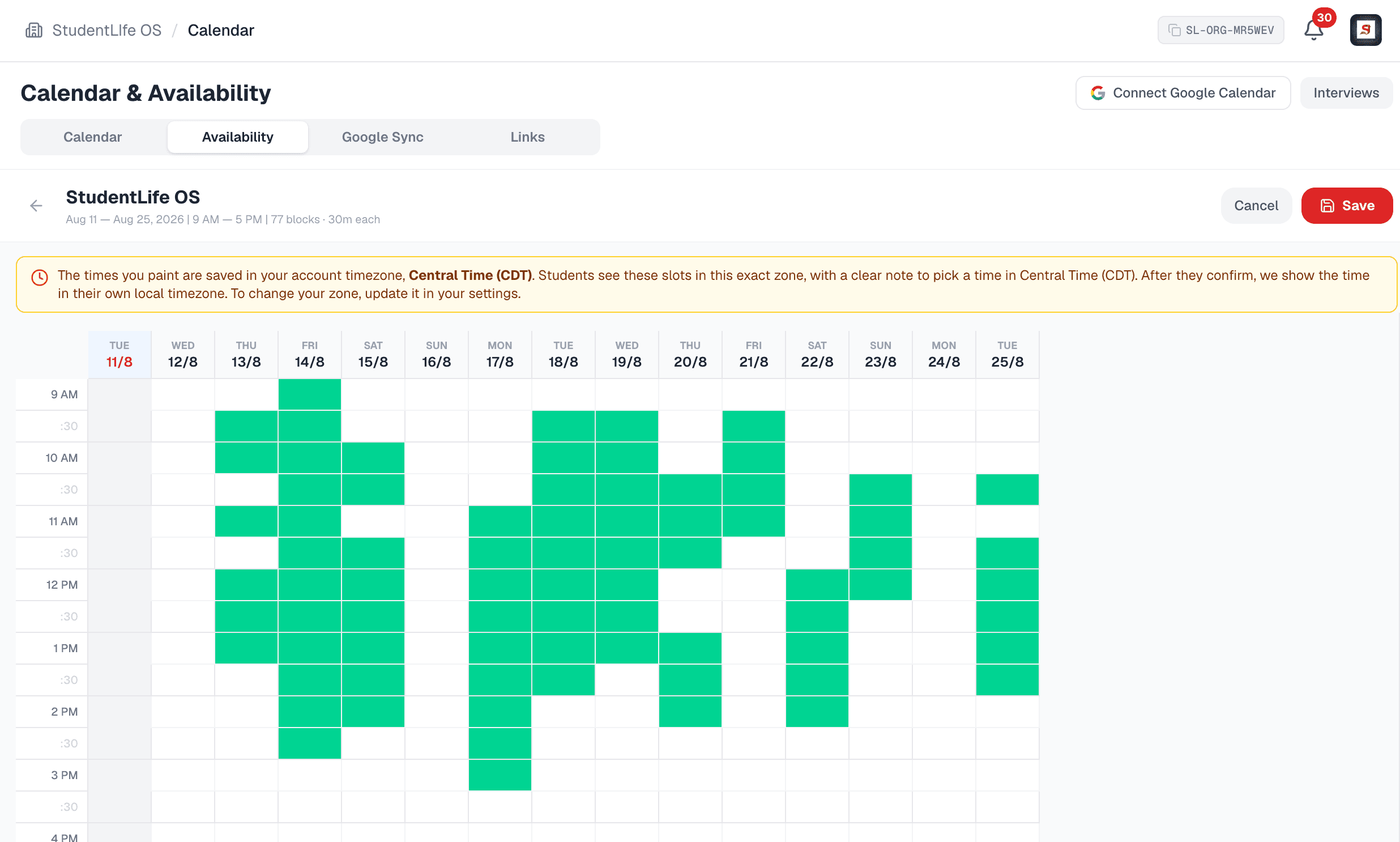
Before applicants arrive, open the Calendar tab and paint the windows your team is free. Create an availability set, give it a name and a date range, then click and drag the grid to mark your open 30 minute slots. When you invite candidates later, they pick a slot themselves, so you never trade emails to find a time.
- Availability is stamped in your institution timezone on the server, so a teammate in another city produces the same window.
- Create one set per interviewer, team, or round. There is no limit and no per interview fee.
- Save your meeting link once and it travels with every interview, into the student confirmation, reminders, and calendar.
Keep Silent review on while you triage
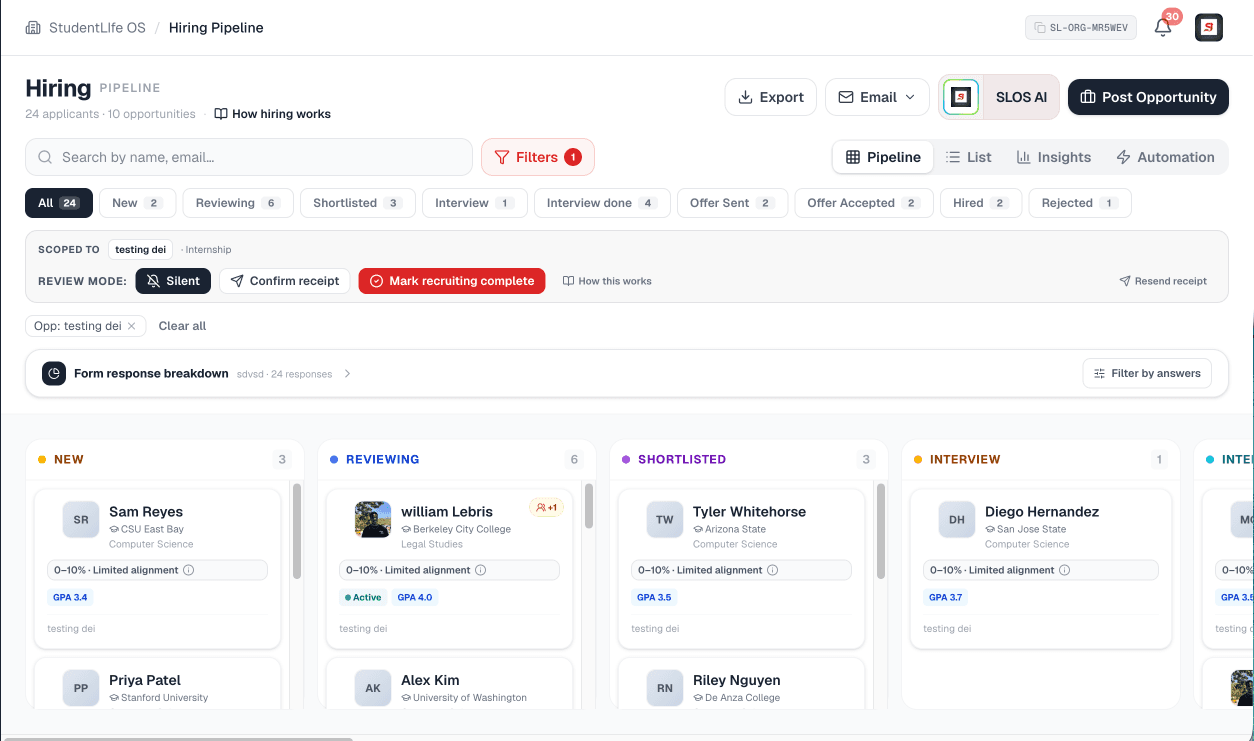
When you focus one opportunity, a row of review controls appears. Turn Silent review on before you move anyone. With it on, dragging applicants between stages does not email them, so you can sort the whole pool freely and nothing is sent until you choose to send. This is the single most important habit in the pipeline.
- Silent review on means status changes are private. You decide exactly when an applicant hears from you.
- Use Confirm receipt to send every applicant a professional acknowledgment once you are ready. It will not double send.
- Emails only go out from the actions you choose: receipt, interview invites, offers, or marking recruiting complete.

Open the Hiring Pipeline
Every student who applies to your opportunity lands in the pipeline as one row. Use the List view to scan many applicants fast: it loads more rows as you scroll, sorts by date, name, rating, GPA, graduation year, or match strength, and lets you tick rows for a bulk action. The Pipeline board view shows the same people as cards in columns you can drag between.
- Filter once and it applies across the Pipeline, List, and Insights views and to every export.
- Focus a single opportunity to filter on the actual answers applicants gave on its form, field by field.
- Each card shows a match band, a pass check, your star rating, and private team notes at a glance.
Open a candidate from the list
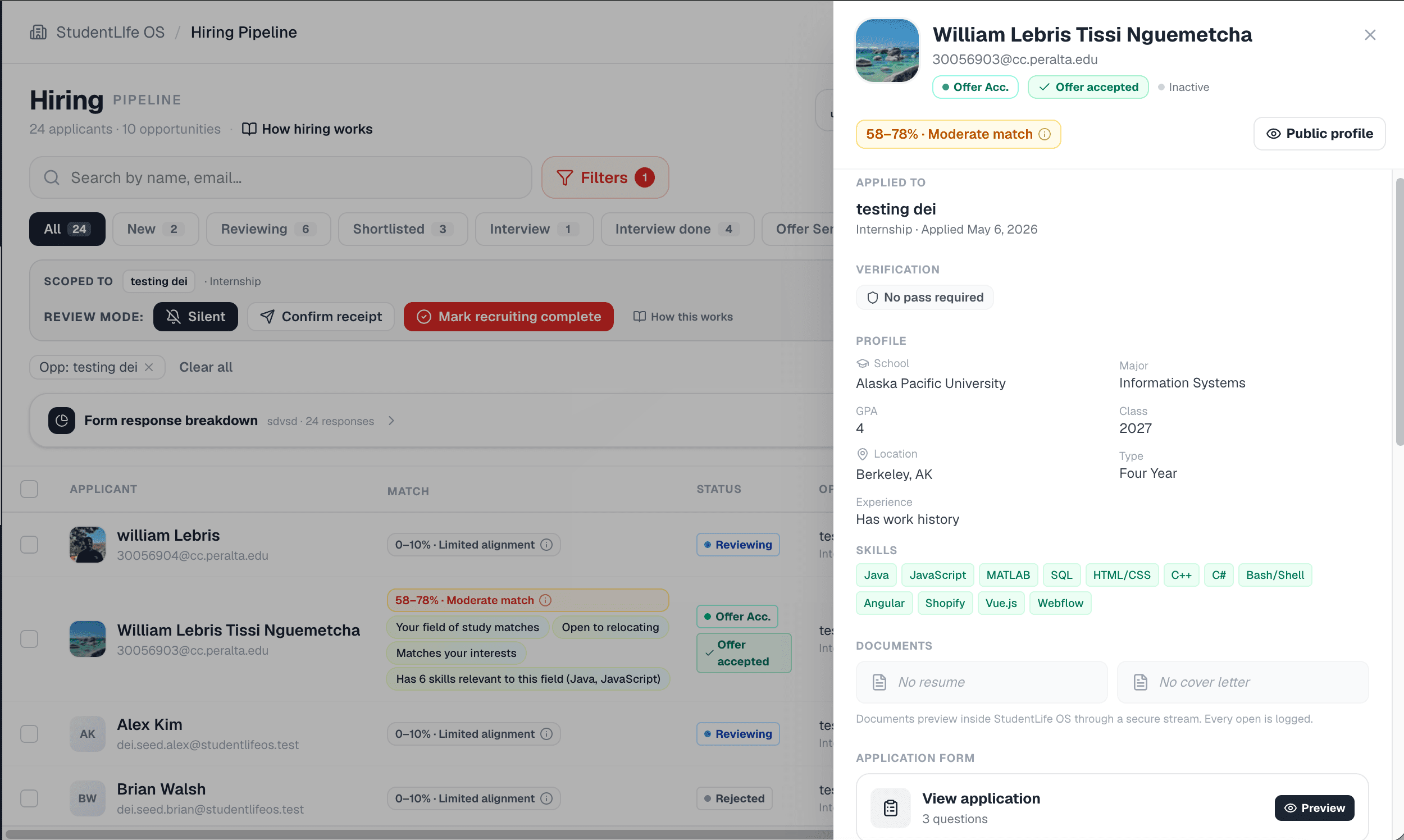
Select any row to slide in the applicant drawer. It brings the resume, cover letter, form answers, match reasoning, your private notes, and the star rating into one place, so you can make a real decision without leaving the pipeline. Clicking a name or photo opens a secure profile preview in a new tab using a signed token, never a raw ID.
- Documents open through a proxy route, never a public file link, so a resume URL cannot be shared or guessed.
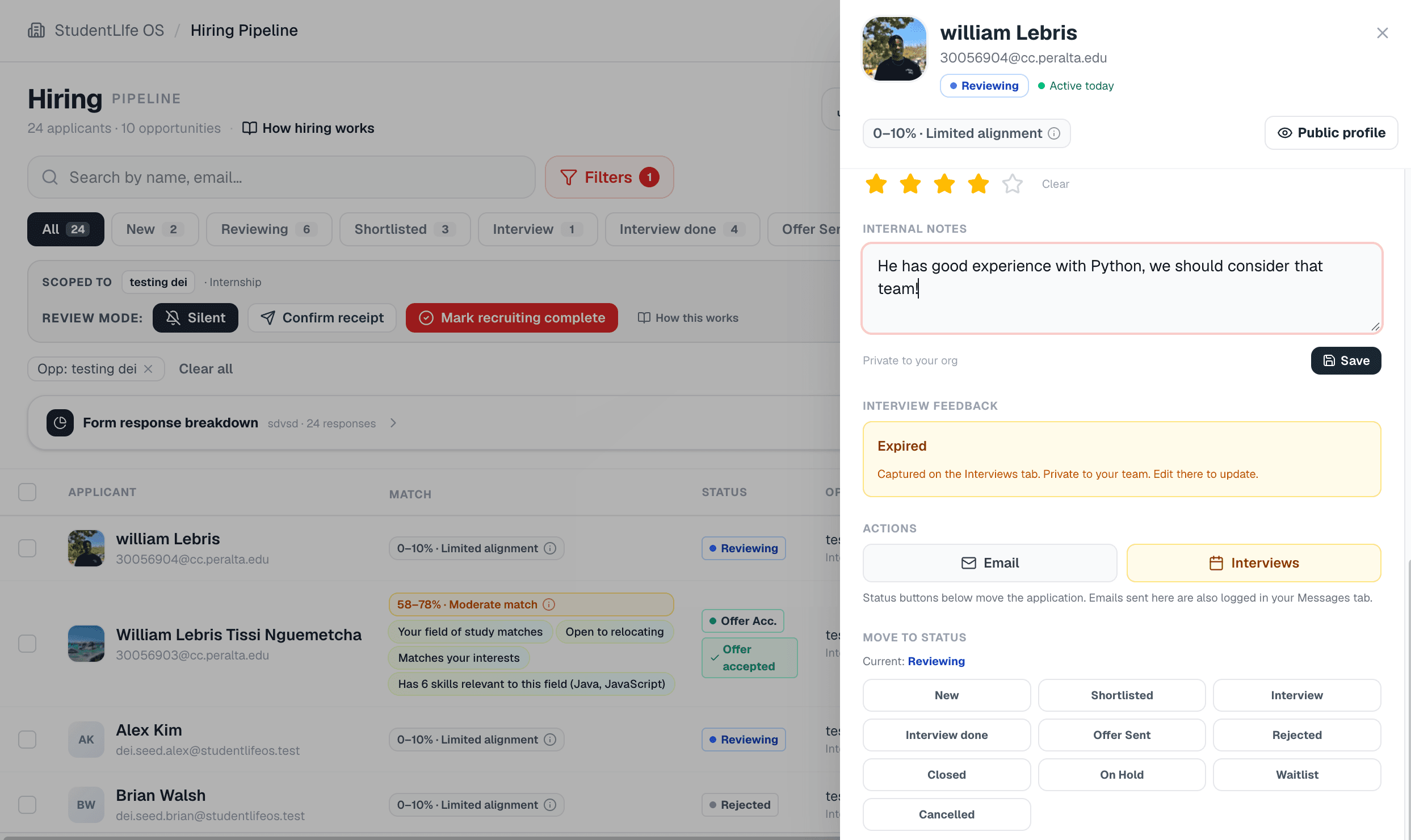
- Add a 1 to 5 star rating and private internal notes your team can see. The applicant never sees these.
- Right click a name to fan several candidates out into tabs and compare them side by side.
Move candidates through the statuses
Move each applicant through clear stages as you make decisions. A job runs New, Reviewing, Shortlisted, Interview Scheduled, Interview Completed, Offer Sent, Offer Accepted, and Hired, with On hold, Waitlisted, and the closed outcomes alongside. An event runs a simpler Registered, Accepted, Attended, and No show. Drag a card or use the dropdown, and with Silent review on nobody is emailed yet.
- The columns adapt to the opportunity type, so a job and an event each show the stages that make sense.
- A soft Not moving forward is recoverable, so a mistaken reject can be moved back. Final and Hired are terminal.
- Tick several rows and use the bulk bar to shortlist, review, reject, or email a whole group at once.
Let SLOS AI assist your shortlist, if you want
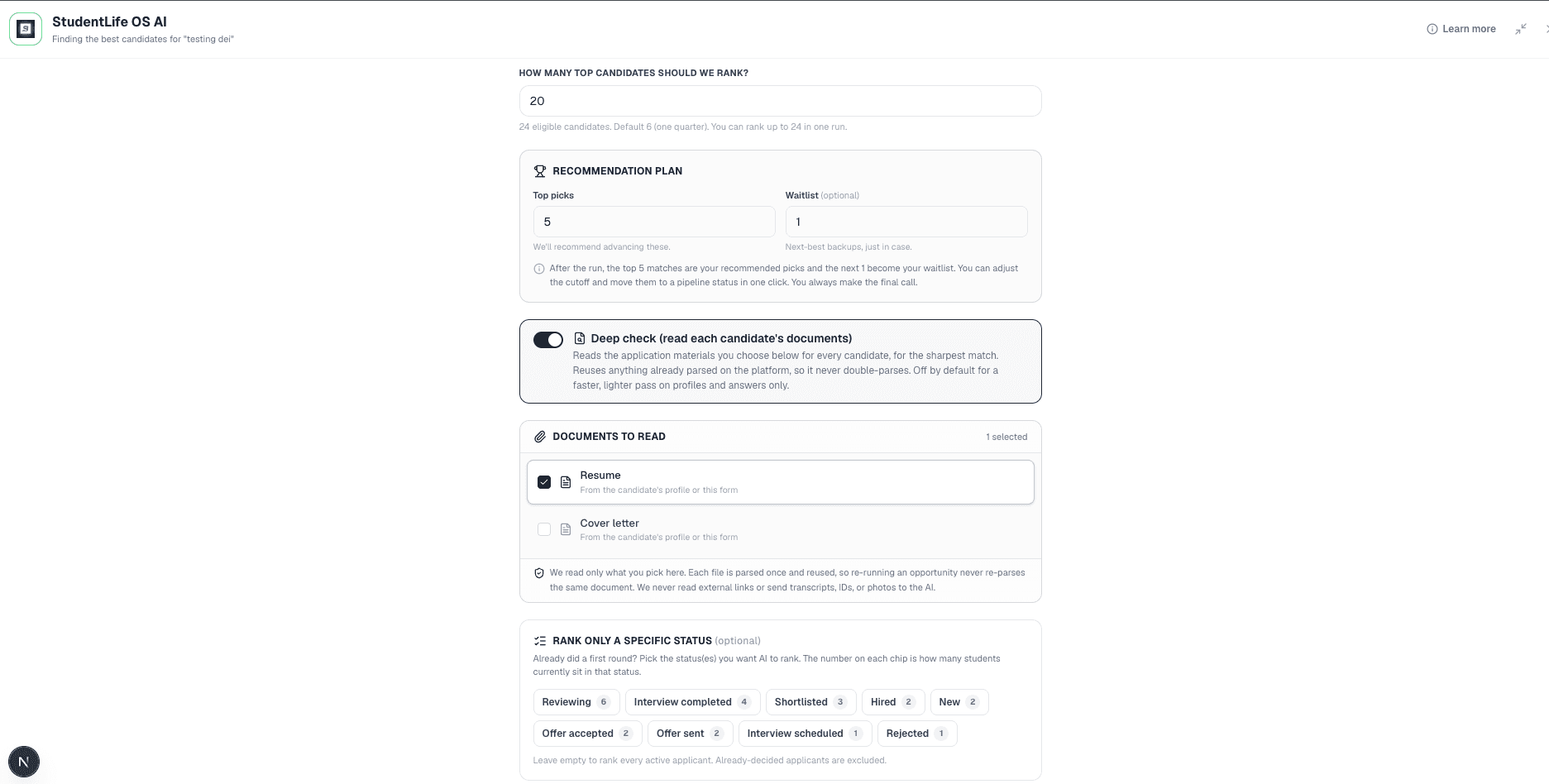
SLOS AI is optional. Focus one opportunity and open it, and the assistant reads the role and each candidate, then ranks the pool with a clear match percentage and a one line reason for each pick. It is blind to race, gender, age, disability, and veteran status by construction, and school prestige is never a ranking input. It never changes a status or messages anyone. You make every decision.
- Light check scores on profile and answers only. Deep check reads each resume and cover letter and is off by default.
- Apply the ranking and the list sorts by AI rank with each percentage shown, so the strongest fit floats to the top.
- Re running with the same settings reuses already scored candidates, so you never pay for the same work twice.
Schedule and run interviews
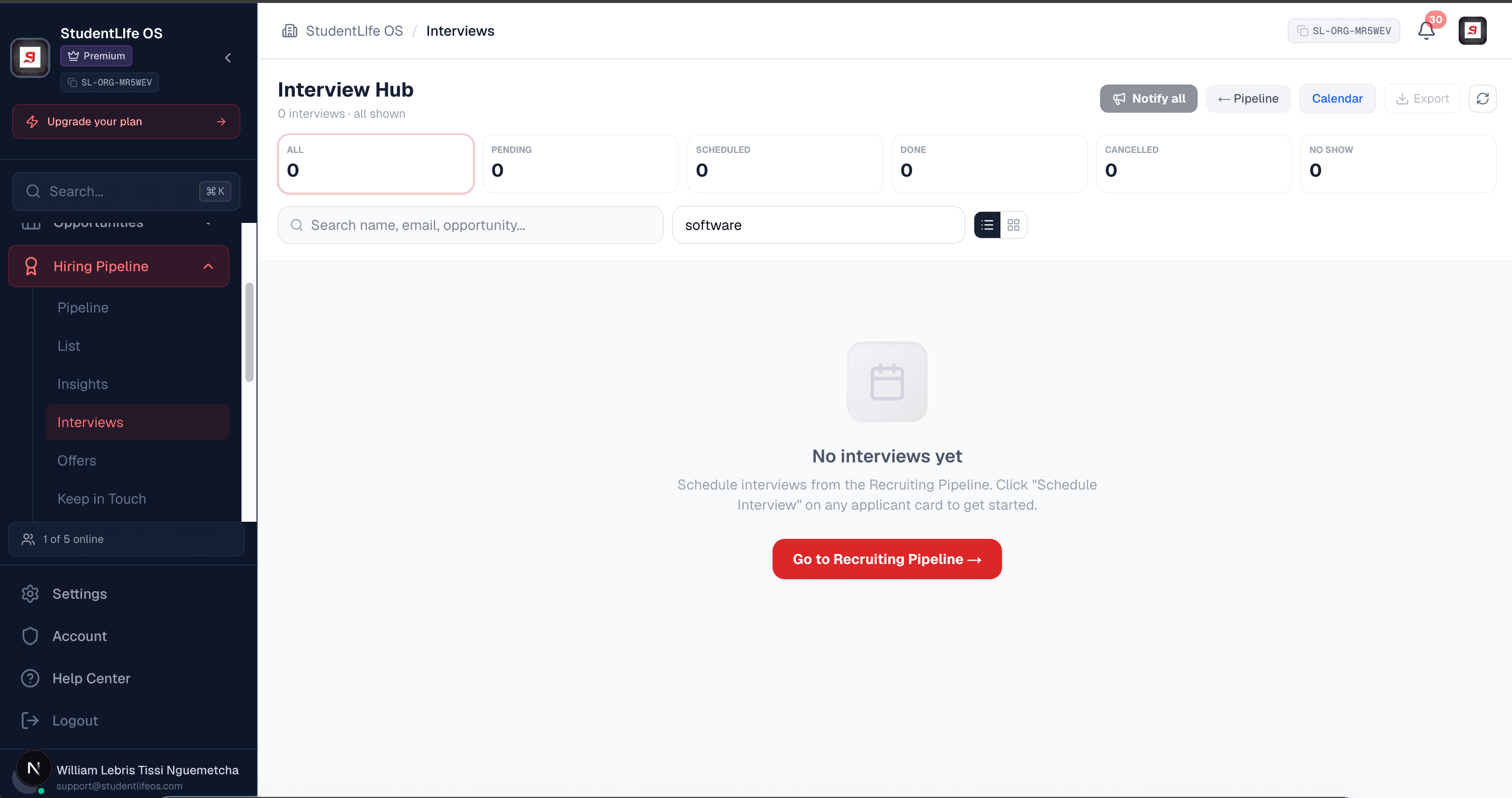
From the Interviews tab, invite a candidate or a whole shortlist to the availability set you painted in step one. Each student picks an open slot, sees the time in the right timezone, and gets the meeting link automatically. Invited, confirmed, completed, expired, and cancelled all sync back to the pipeline and the interview filters, and reminders fire to both sides.
- Bulk invite a shortlist to one set, or invite a single candidate. Students self book, so there is no scheduling tag.
- Set how long an invite stays open. An expired invite is marked clearly and you can re invite.
- Reschedules and cancellations cascade correctly on both sides, with timezone aware reminders.
Leave interview notes and a rating
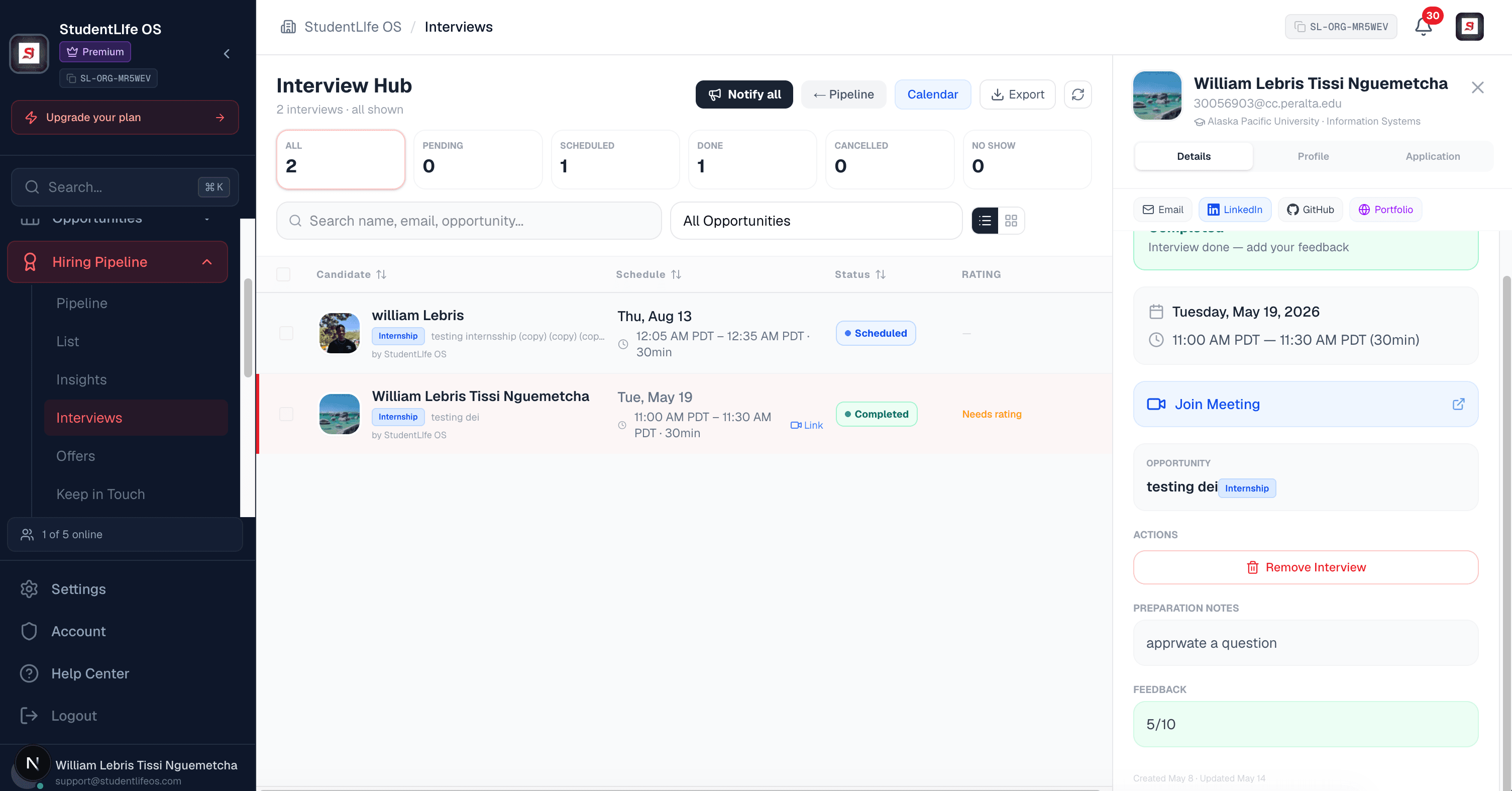
After each interview, open the drawer and capture your feedback and a rating against that applicant. Notes and ratings stay private to your team and are recorded on the candidate, so when it is time to decide you are comparing real, written impressions instead of relying on memory.
- Feedback is recorded against the applicant, so a panel can read each other notes before deciding.
- Notes and ratings are internal only. The student never sees them.
- Pair a rating with the match reasoning to keep your shortlist honest and defensible.
Send offers
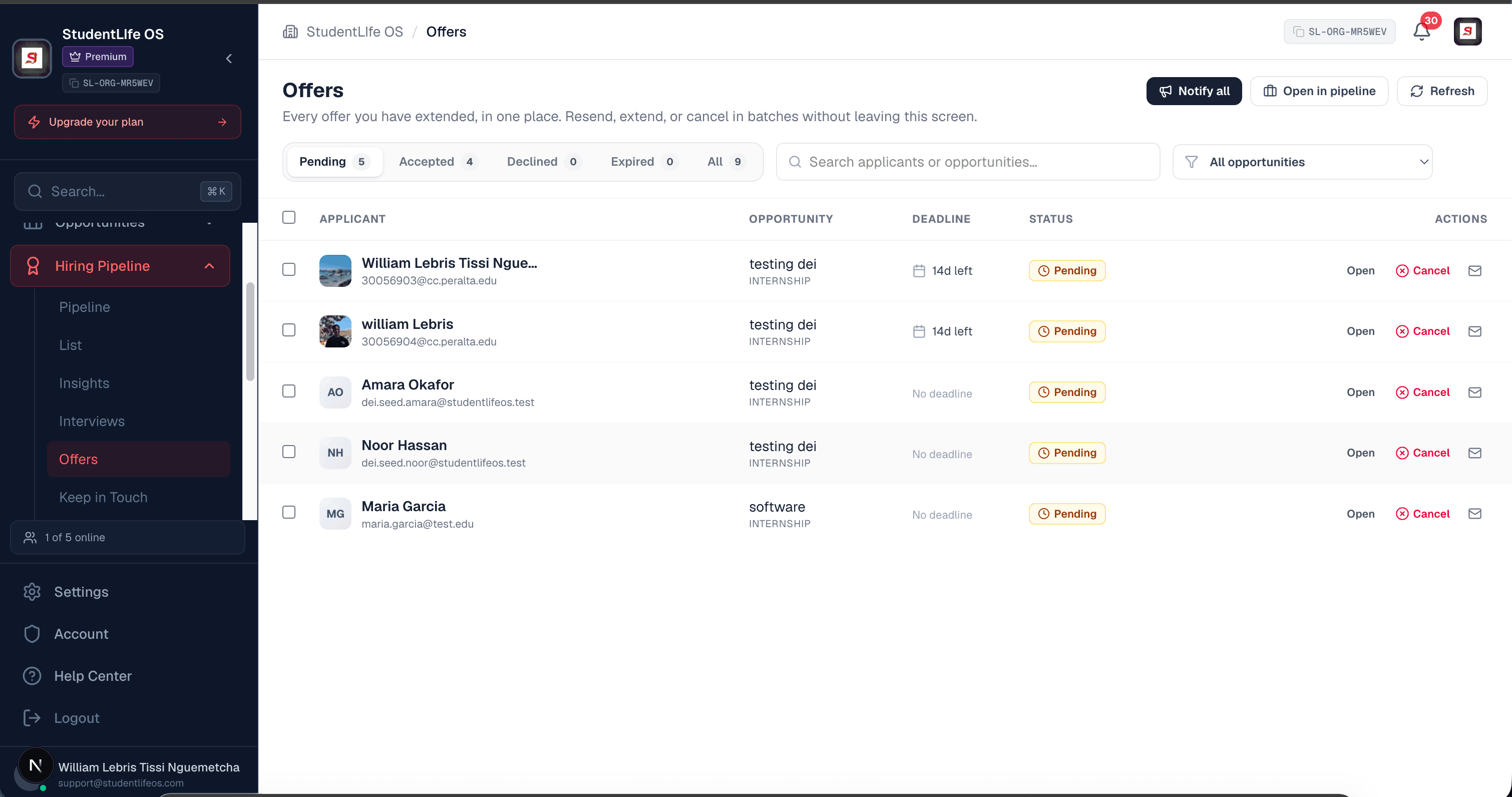
From the Offers tab, send one offer or extend the same terms to a group. Each offer carries an expiration date, notes, and any documents you attach, so the candidate has everything they need to respond. Track who accepted, declined, or let it expire, and filter the pipeline by offer state to follow up on anyone who has not yet replied.
- Apply one deadline and one set of notes to many candidates at once when you extend the same offer broadly.
- Moving an applicant out of Offer sent clears the offer and warns you first, so a status change never silently rescinds it.
- Deadlines keep the process moving, and the tracker shows exactly where every offer stands.
Mark recruiting complete when you are truly done
When interviews and offers are finished, click Mark recruiting complete. In one background job it sends every remaining applicant their final status, including the people not moving forward, so nobody is left wondering. It refuses to run while live interview invites or unanswered offers remain, and tells you how many, so you finish those first. This is the professional close that respects every applicant who spent time on you.
- This is the big email. It notifies every remaining applicant who has not withdrawn, so only click it once you are actually done.
- It will not run while live interview invites or unanswered offers remain, and it tells you how many are blocking.
- Closing the loop with every applicant is the right thing to do, and it is what builds your reputation on campus.
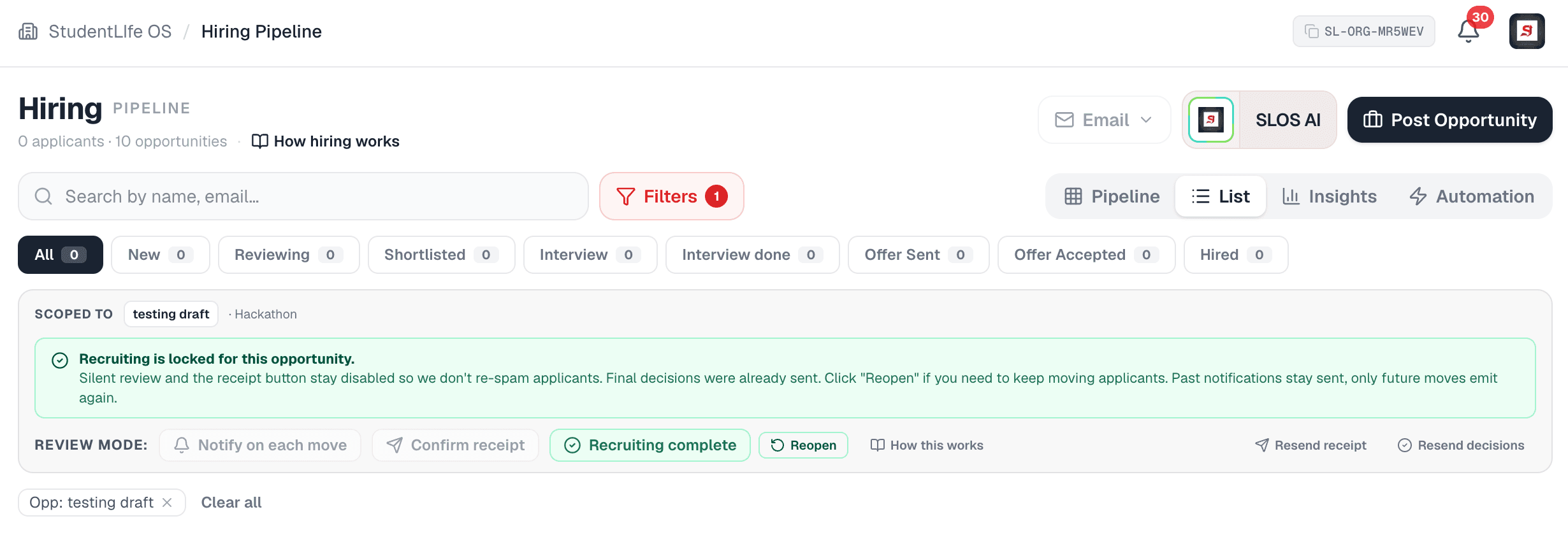
Always close the round
Once your interviews and offers are done, mark recruiting complete. It is the professional close that tells every applicant where they stand, including the people not moving forward, instead of leaving them waiting. Closing the loop is the right thing to do, and it is what builds your reputation with students and schools. If you ever mark complete too early, reopen the round, finish what is left, then mark complete again, sending only to the candidates who have not already been notified.
Good to know
You control every email
Silent review keeps movement private. Emails go out only from the actions you choose, never automatically as you triage.
One filter, every view
Set a filter once and it applies across the Pipeline, List, and Insights views, and to every export.
Privacy by default
Names open a signed preview, never a raw ID, and resumes load through a proxy, never a public file link.
SLOS AI is blind to identity
The optional ranking never sees demographics, and school prestige is never a ranking input. You decide.
Self booking interviews
Invite a shortlist and each student books an open slot, in the right timezone, with the meeting link attached.
A clean close
Mark recruiting complete tells every remaining applicant where they stand, and you can reopen if you need to.
Keep going
Frequently asked
Does the hiring pipeline work for more than jobs?+
Yes. It runs every opportunity type except discounts. Internships, jobs, scholarships, programs, and research accept students through an application form or your own external link and move from New to Reviewing, Shortlisted, Interview, Offer, and Hired, a scholarship simply awards instead of hiring. Events, campus tours, hackathons, conferences, and volunteering accept students by registration, one tap or a short signup form with capacity and a waitlist, and end in Attended or No show. A food pantry is a one tap claim per cycle, tracked in the same pipeline so you can see returning students and demand. Discounts are the only type with no pipeline, because a student redeems a code and a link directly and there is nothing to review.
What if I marked recruiting complete by accident, or before it was actually done?+
You can reopen recruiting. Owners and admins can reopen a completed round at any time, for example to add a hire you decided on later. Past notifications stay sent; reopening does not un send an email. The applicants already notified keep their final status, and you can continue working the pipeline. Marking complete also refuses to run while live interview invites or unanswered offers remain, which prevents most accidental early closes in the first place.
If I reopen and mark complete a second time, will people get a duplicate rejection?+
No, as long as you scope the second send. When you mark complete again, choose send to selected and pick only the new candidates you added after reopening. That way the people who already received their final decision are not emailed twice, and the new candidates get their first and only notification.
Who gets emailed when I mark recruiting complete?+
Every remaining applicant who has not withdrawn receives their final status, accepted, not moving forward, or waitlisted, in one background job. Applicants you already finalized through interviews or offers are handled through those flows. This is the only action that fans a decision out to your whole remaining pool, which is exactly why you keep Silent review on until you reach this point.
Do students get spammed while I move them around the pipeline?+
Not when Silent review is on. With Silent review enabled, dragging applicants between stages does not notify them, so you can triage the entire pool privately. Emails go out only from the actions you choose: Confirm receipt, interview invitations, offers, automation rules you set up, and Mark recruiting complete. You are always in control of when an applicant hears from you.
Do I have to use SLOS AI?+
No. SLOS AI is an optional assistant. The entire pipeline, from review to interviews to offers to marking complete, works without it. When you do use it, it ranks candidates against the role to help you build a shortlist faster, but it never moves a candidate, never sends a message, and never makes a decision. It is also blind to demographics by construction, and you remain responsible for every hiring decision.
Is the hiring pipeline the same for organizations, schools, and departments?+
Yes. The pipeline, the status stages, Silent review, interviews, offers, SLOS AI, and Mark recruiting complete work the same way on all three sides. For schools and departments the recruiting toolkit is included with the plan; for organizations the hiring pipeline and interview scheduling are on the Pro plan and above. Within an account, actions are gated by team role and enforced on the server.
Where do I set up interview times?+
On the Calendar tab, under Availability. You paint the 30 minute windows your team is free, and candidates you invite from the pipeline book themselves into those windows. There is no limit on availability sets or bookings and no per interview fee. See the calendar guide for the full walkthrough of availability, Google sync, and saved meeting links.
Ready to run your first pipeline?
Create an account, post an opportunity, and review your applicants end to end, or read how the hiring pipeline works in depth.