Guide
How to post an opportunity.
Publishing an opportunity takes about five minutes. Build your application form, save it, create the opportunity, submit it live, and pause it whenever you need to. This guide walks through every step with screenshots.
Before you start
- Be signed in to your organization, school, or department portal.
- Have a team role that allows posting (the button is hidden otherwise).
- Know what you are offering: a job, internship, scholarship, event, and more.
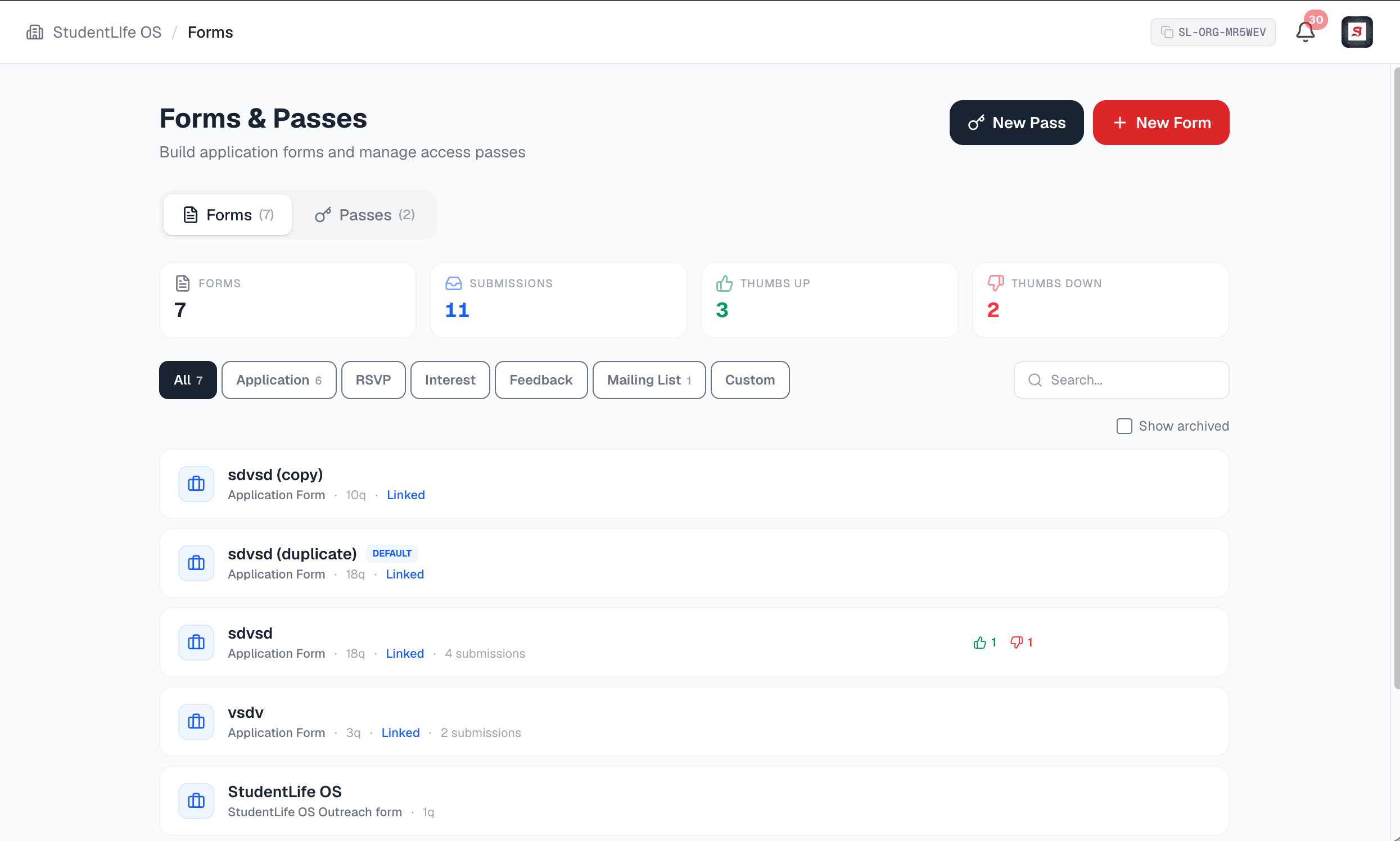
Open the Forms tab and build your application form
Go to the Forms tab in your portal and create the form students will fill out when they apply. Add the questions you need, choose which are required, and pick from a template to start fast.
- Use a template to start in seconds, then adjust the questions.
- Keep it short: name and email are enough to start receiving applications.
- Avoid adding a cover-letter field unless you need one.
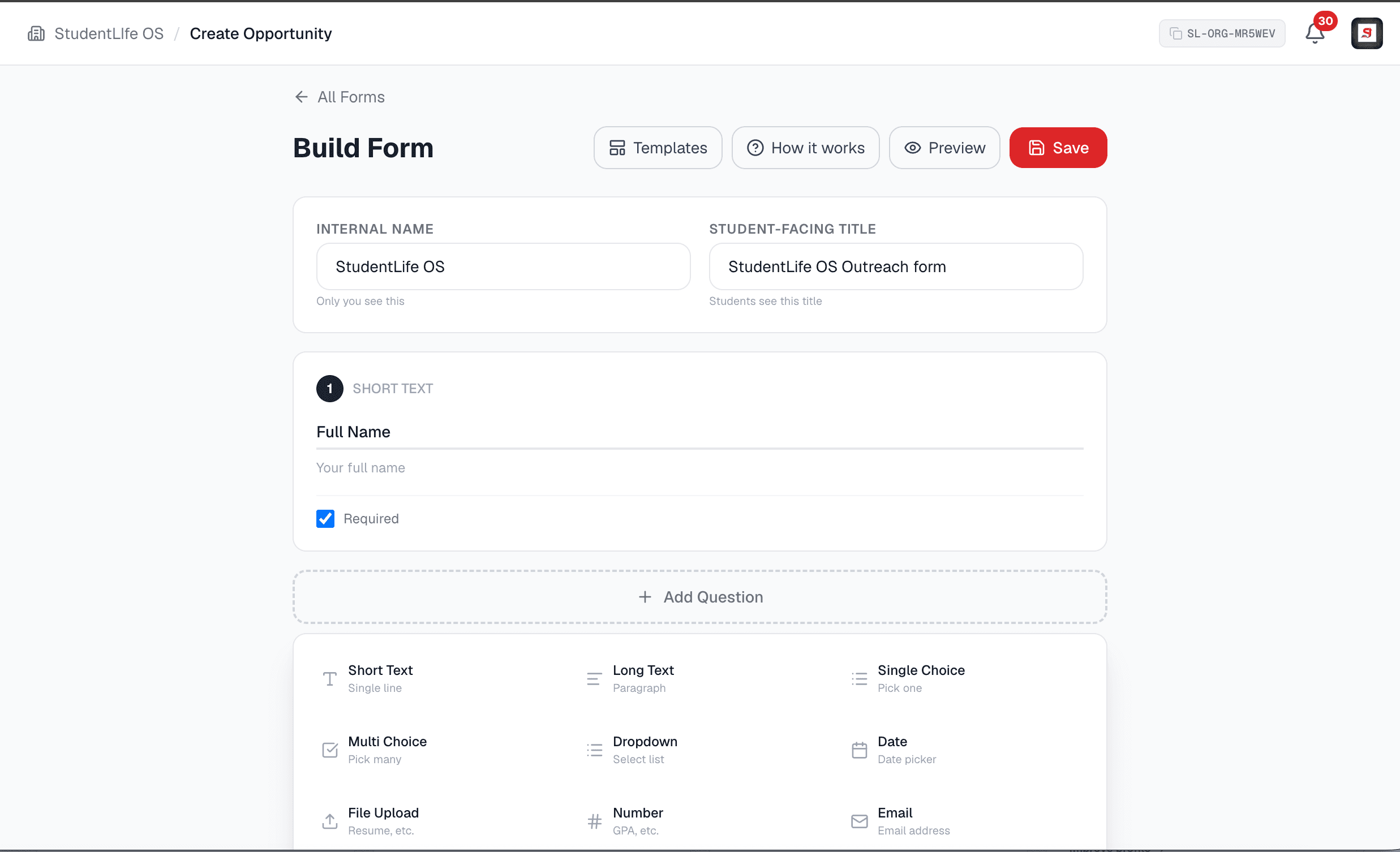
Save the form
When the form looks right, click Save. Your saved form is now available to attach to any opportunity you post, and you can reuse it across multiple postings.
- Saved forms are reusable: build it once, attach it to many postings.
- You can edit a form later; existing responses are preserved.
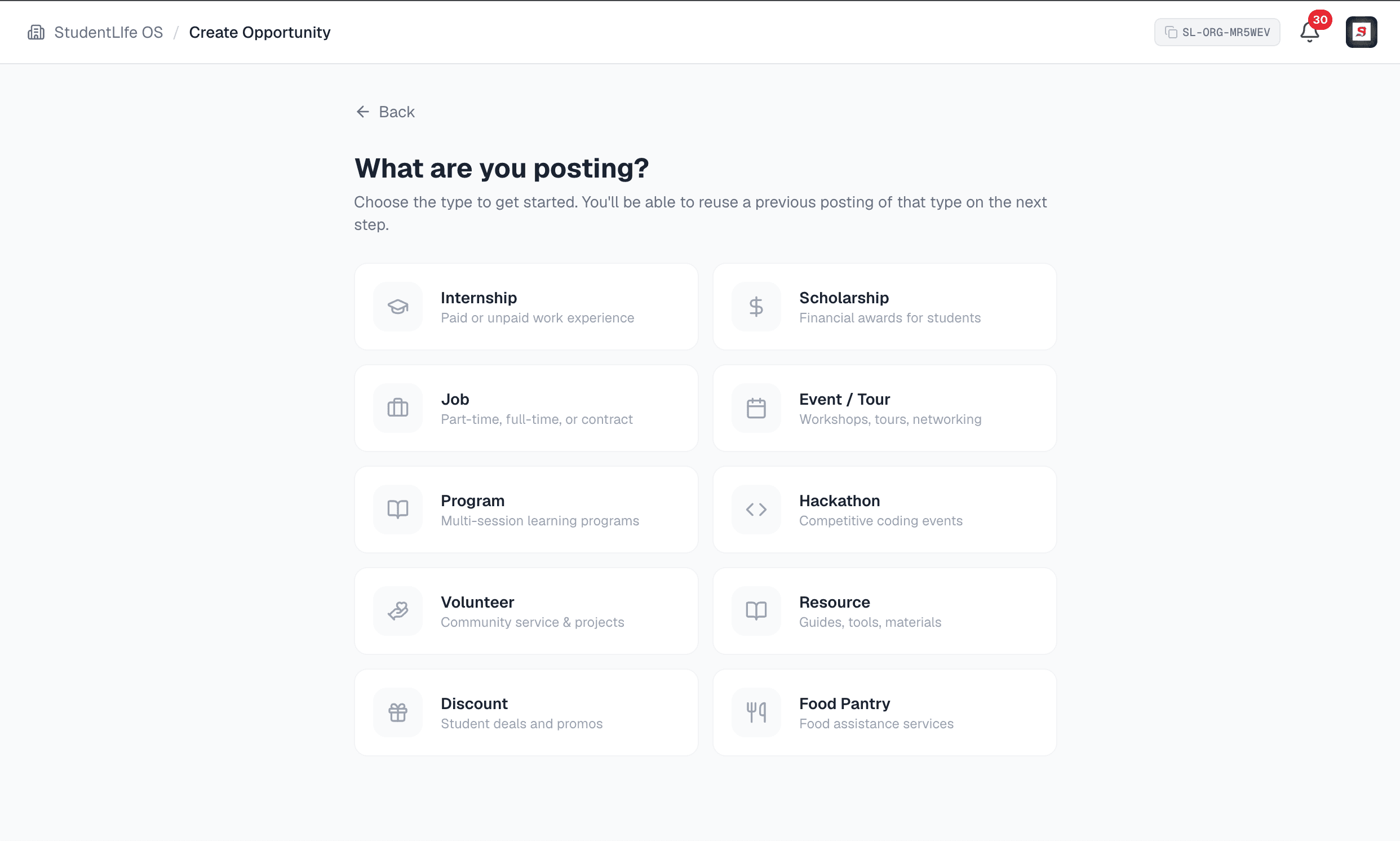
Go to the Opportunities tab and click New opportunity
Open the Opportunities tab and click New opportunity. Pick the type, fill in the guided details, and attach the form you just saved so applicants land straight in your pipeline.
- Ten types are available: internship, job, scholarship, event, program, hackathon, volunteer, resource, discount, and food pantry.
- Posting is unlimited and free on every plan, including Free.
- Reuse a previous posting of the same type to start the next one in seconds.
Submit to publish it live
Review the details and click Submit. Your opportunity goes live immediately, appears in the student feed for the audience you chose, and starts matching with students who fit.
- You can generate a branded flyer, a QR code, and a shareable link for any live posting.
- Applying always requires a verified student account, which keeps your pipeline real.
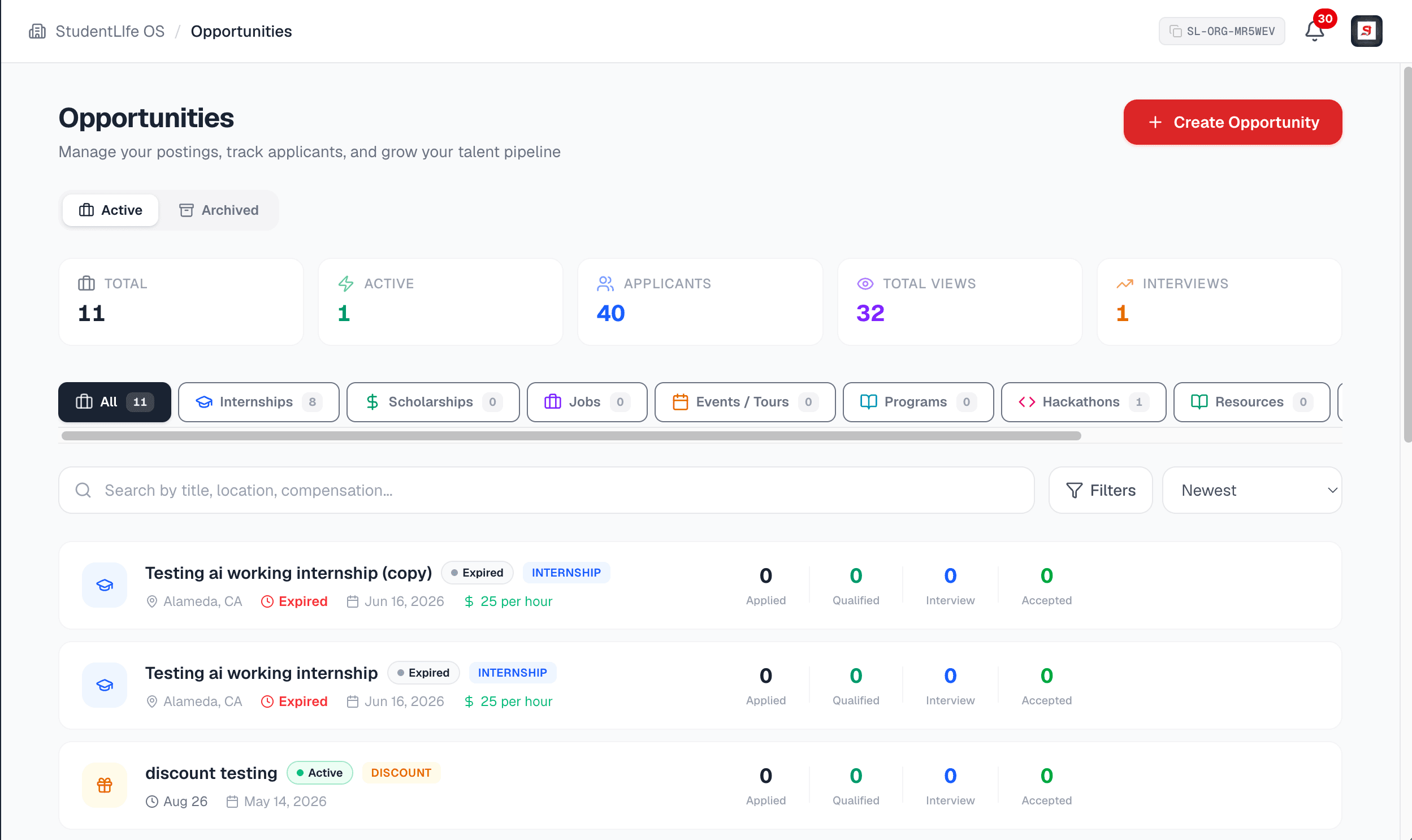
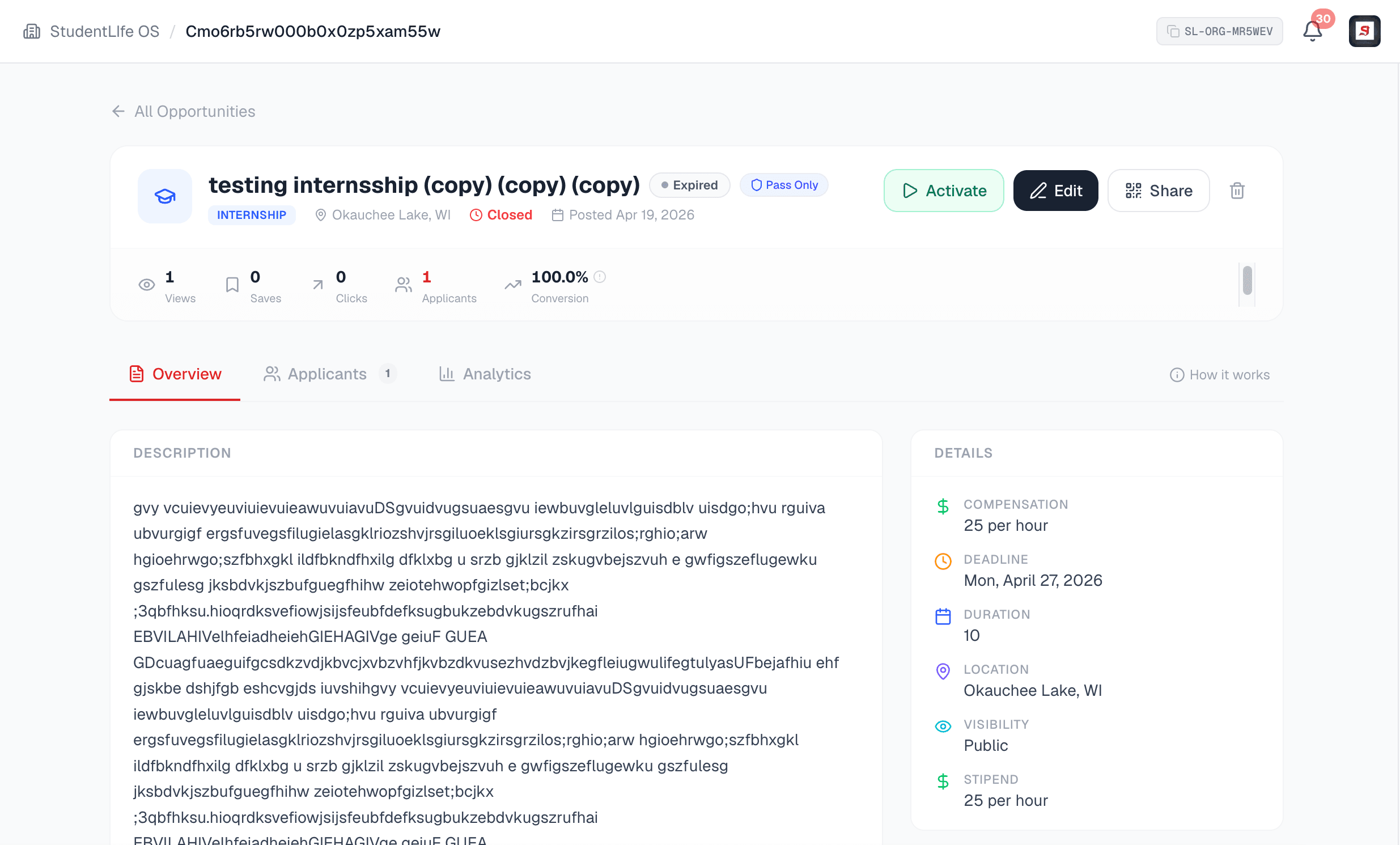
Pause it anytime, without losing anything
Need to stop receiving applications for a while? Click Pause. The posting is instantly removed from the student feed but nothing is deleted. Reactivate whenever you want and its applicants and analytics come back intact.
- Pausing does not delete applicants or analytics.
- Reactivate at any time; everything returns exactly as it was.
- You can also edit, archive, and restore a posting across its whole lifecycle.
Good to know
Unlimited and free
Post as many opportunities as you want on any plan, including Free. Getting in front of students is never the thing you pay for.
Flyer, QR, and link
Generate a branded flyer, a QR code, and a shareable link for any posting, free on every plan.
Pass-gated visibility
Restrict a posting to students who hold a specific pass. Enforced on the server, so a direct link still cannot bypass it.
Audience targeting
Reach the right students by audience, school, and state, with match scoring that surfaces the best fits.
Real pipeline
Applicants flow into your hiring pipeline to review, shortlist, message, interview, and decide.
Honest analytics
Track who applied live, with a full funnel on Pro and above, and rates capped so nothing is ever inflated.
Frequently asked
Who can post opportunities on StudentLife OS?+
Organizations, schools, and school departments can all post opportunities, and the flow is the same for each. Within an account, posting is gated by team permissions, so only team members with the right role can create or publish.
Does it cost anything to post?+
No. Posting is unlimited and free on every plan, including Free. A free account can publish as many opportunities as it wants and always receives applications. Paid plans unlock the deeper tools to act on and measure that activity, like advanced analytics, the hiring pipeline, in-platform interviews, and bulk outreach to matching students.
Do I have to build a form first?+
For in-platform applications, you attach a saved form so applicants land directly in your pipeline. Building and saving the form first (steps one and two) makes the rest of the flow fast, and the form is reusable across many postings. Some posting types, like a resource or a discount, do not require an application form.
What happens after a student applies?+
Applicants flow straight into your hiring pipeline, where you can review, shortlist, message, interview, and make decisions. Every posting also tracks how many students applied, updating live.
Can I take a posting down temporarily?+
Yes. Pause a posting to instantly remove it from the student feed without deleting it. Its applicants and analytics are preserved, and you can reactivate it at any time.
Ready to post your first opportunity?
Create an account and publish in minutes, or read how posting works in depth.